What a camera test checks: Browser, camera, mic and speakers
What a camera test checks on this site: whether the browser supports video calling, whether the page is secure, what the site permissions say, whether camera and microphone deliver a live signal, and whether you hear a tone. A line fails when access is refused, a device is missing or another app holds it.
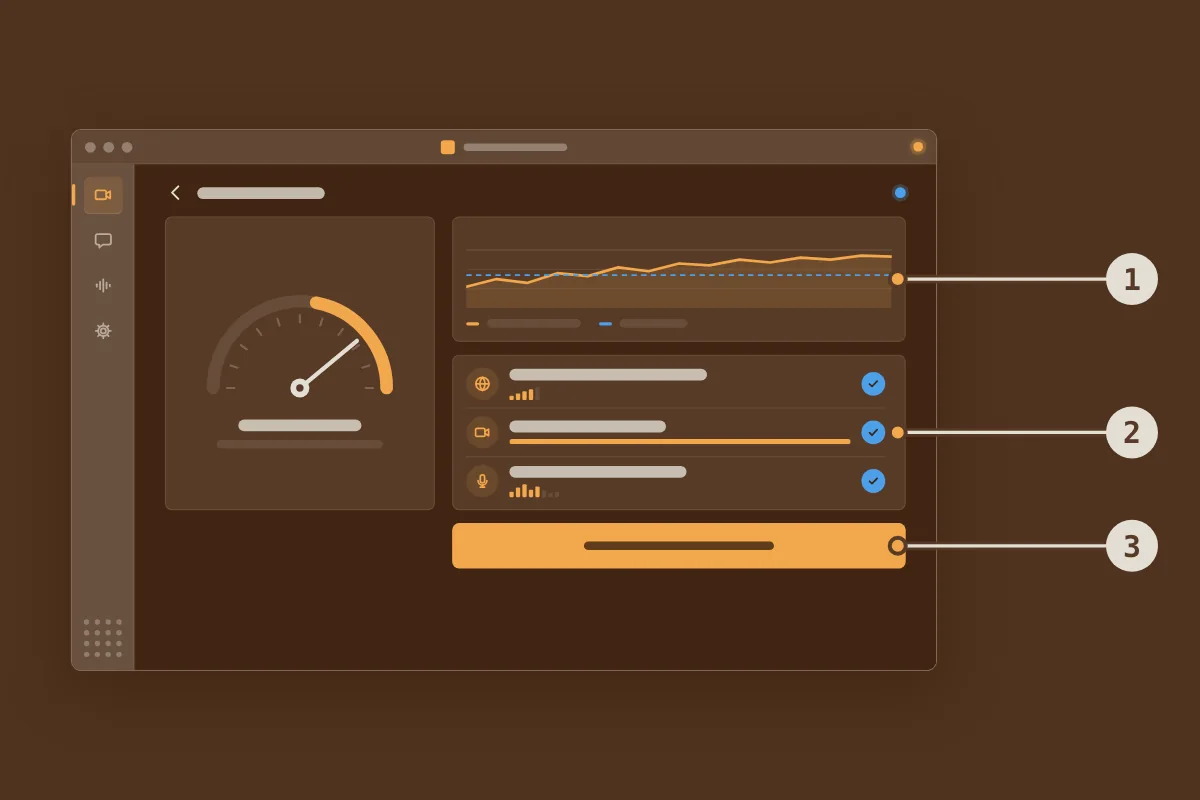
What each line of the test reads
We describe the test from its own code, line by line. The first three are automated checks that run as soon as the page opens; the camera and microphone wait for the Check camera and mic button, and the speakers wait for Play a test tone.
- Video calling support: looks for RTCPeerConnection, the browser part behind WebRTC, which carries live audio and video between two ends. Without it, no browser call can start.
- Secure connection: reads whether the page counts as a secure context, meaning it arrived over HTTPS.
- Site permissions: queries the Permissions API, a browser interface that reports the stored camera and microphone decision without raising a prompt. If both are granted, it reads Works; a refusal for either reads Not working, and anything else reads Browser will ask. Where a browser lacks the interface, the line stays at Not checked yet.
- Camera: shows a live picture plus the width, height and frame rate the camera reports. With more than one camera attached, the Device menu switches between them.
- Microphone: drives a level bar from the incoming signal, so talking should move it.
- Speakers: Play a test tone sounds a short beep. Only you can judge that. The line therefore asks instead of passing.
When the camera and microphone lines turn to Not working, a message under the buttons names the cause: Blocked: allow access in site settings, No camera or mic found, In use by another app, or Not supported in this browser. If it says Blocked and still does after an Allow, the fix for a denied camera walks through Chrome, Safari and Edge settings, layer by layer.
What stays on your device
We keep the stream inside the tab: the test on Free Video Call sends nothing and saves nothing, and Turn camera and mic off or leaving the page ends the capture.
Say you delete this site's stored data through the browser settings. Everything the site keeps in localStorage resets: the checklist ticks and your light or dark theme. The 18+ answer sat in sessionStorage only until its tab closed anyway, and the camera test loses nothing, because it never wrote anything down.
What the test does not measure
Knowing what a camera test checks also means knowing its limits, and we count three:
- Connection speed. The test contacts no server, so bandwidth and delay stay unknown.
- The route of a real call. Video calling support confirms the browser part, not whether a firewall or router lets a call through.
- The chat behind the call button. The test has no view into that service at all.
Passing every line therefore cannot promise that a free video call will connect. What it does settle is the local half: this browser, this page, these devices. Before calling strangers, a short safety list to tick first covers what the test cannot.